Animating Algorithms in SwiftUI: A Step-Recorder Pattern for Visualising Sorts, Searches and Graphs
Originally published at https://bestlatestapps.com/blog/animating-algorithms-in-swiftui/
Separate the algorithm from the animation, record every step as data, then play it back with play, pause, speed and scrubbing, accessibly

When I was learning data structures, the textbook diagrams were always a frame or two short. You'd see the array before the merge and the array after, and the interesting part, the moment the two halves interleave, happened somewhere off the page.
That's the gap DSA Master – Data & Algorithms tries to fill. It's my learning app for data structures and algorithms. It covers arrays and linked lists through segment trees, Dijkstra and KMP, with code in several languages, practice challenges and, the part I care about most, step-by-step animated visualisations you can play, pause, replay and slow down.
The first visualiser I wrote was the obvious one: put Task.sleep inside the sorting loop and update some @State between comparisons. It worked for bubble sort and fell apart immediately after. Pause was a hack, rewind was impossible, the speed slider fought the animation, and every algorithm had UI code tangled through it.
The fix is a pattern I now use for every visualisation: record, then replay. The algorithm runs once, at full speed, and emits a list of steps as plain data. A separate player walks through those steps and the views render whatever the current step says. This article builds that pattern in SwiftUI, from the step model to the player, sorting bars, binary search, BFS on a graph and complexity charts, with notes on accessibility and on running user code. The approach is the one I'd use and recommend; I'm not publishing the app's exact source.
1. The problem with animating inside the algorithm
Here's the tempting version:
// Don't do this.
func bubbleSortAnimated() async {
    for i in 0..<values.count {
        for j in 0..<values.count - i - 1 {
            highlighted = [j, j + 1]
            try? await Task.sleep(for: .milliseconds(300))
            if values[j] > values[j + 1] { values.swapAt(j, j + 1) }
        }
    }
}
It looks fine, but:
- You can't go backwards. The state is gone once the loop moves on.
- Pause and speed changes leak into the algorithm. Every algorithm needs the same
if paused { … }plumbing. - The algorithm isn't testable. You can't assert on "the sequence of comparisons" without running the UI.
- Recursive algorithms get ugly. Merge sort and DFS turn into
asyncrecursion just to show a highlight.
Recording steps as values fixes all four.
2. The step model
A step is a snapshot of what the viewer should see, plus a sentence explaining it. For array algorithms:
struct Bar: Identifiable, Hashable {
    let id: Int        // stable identity, so SwiftUI can animate moves
    let value: Int
}

struct ArrayStep: Hashable {
    enum Action: Hashable { case compare, swap, overwrite, markSorted, done }

    var bars: [Bar]
    var action: Action
    var active: Set<Int> = []      // indices being looked at
    var sorted: Set<Int> = []      // indices known to be final
    var caption: String
}
Two design choices matter here.
Each bar has a stable id, separate from its value. Duplicate values are common in sample data; if identity were the value, SwiftUI couldn't tell two 5s apart and the swap animation would glitch.
A step holds the full array, not a diff. For the sizes you visualise (10–40 elements), copying an array per step costs almost nothing, and it makes scrubbing to any step O(1). Diffs are an optimisation you probably don't need.
3. Recording an algorithm
The algorithm becomes a pure function: input in, [ArrayStep] out. Here's insertion sort with a small recorder helper:
struct StepRecorder {
    private(set) var steps: [ArrayStep] = []
    var bars: [Bar]
    var sorted: Set<Int> = []

    init(_ values: [Int]) {
        bars = values.enumerated().map { Bar(id: $0.offset, value: $0.element) }
        record(.compare, [], "Start with \(values.count) unsorted values.")
    }

    mutating func record(_ action: ArrayStep.Action, _ active: Set<Int>, _ caption: String) {
        steps.append(ArrayStep(bars: bars, action: action,
                               active: active, sorted: sorted, caption: caption))
    }
}

func insertionSortSteps(_ input: [Int]) -> [ArrayStep] {
    var r = StepRecorder(input)
    guard r.bars.count > 1 else { return r.steps }

    for i in 1..<r.bars.count {
        var j = i
        r.record(.compare, [j], "Take \(r.bars[j].value) and insert it into the sorted left part.")
        while j > 0 {
            r.record(.compare, [j - 1, j], "Compare \(r.bars[j - 1].value) and \(r.bars[j].value).")
            guard r.bars[j - 1].value > r.bars[j].value else { break }
            r.bars.swapAt(j - 1, j)
            r.record(.swap, [j - 1, j], "\(r.bars[j].value) is larger, so shift it right.")
            j -= 1
        }
    }
    r.sorted = Set(r.bars.indices)
    r.record(.done, [], "Sorted.")
    return r.steps
}
That's the whole visualisation logic for insertion sort, with no SwiftUI and no timers, and it's unit-testable:
import XCTest

final class InsertionSortStepTests: XCTestCase {
    func testFinalStepIsSorted() {
        let steps = insertionSortSteps([5, 2, 4, 6, 1, 3])
        XCTAssertEqual(steps.last?.bars.map(\.value), [1, 2, 3, 4, 5, 6])
        XCTAssertEqual(steps.last?.action, .done)
    }
}
Recursive algorithms are just as easy, because the recorder is a value you pass inout. Merge sort records .overwrite steps as it copies values back from the temporary buffer. Quick sort records the pivot as active and the partition boundary in the caption. Each algorithm stays readable as an algorithm.
4. The player: play, pause, speed and scrub
The player owns an index into the step array, and nothing else about the algorithm:
import SwiftUI

@MainActor
final class StepPlayer<Step>: ObservableObject {
    @Published private(set) var index = 0
    @Published var isPlaying = false
    @Published var speed: Double = 1.0          // 0.5x, 1x, 2x …

    let steps: [Step]
    var baseInterval: Duration = .milliseconds(600)
    private var playTask: Task<Void, Never>?

    init(steps: [Step]) { self.steps = steps }

    var current: Step { steps[index] }
    var isAtEnd: Bool { index == steps.count - 1 }

    func play() {
        guard !isPlaying else { return }
        if isAtEnd { index = 0 }                  // "replay"
        isPlaying = true
        playTask = Task { [weak self] in
            while let self, self.isPlaying, !self.isAtEnd {
                try? await Task.sleep(for: self.baseInterval / self.speed)
                guard !Task.isCancelled, self.isPlaying else { return }
                self.index += 1
            }
            self?.isPlaying = false
        }
    }

    func pause() {
        isPlaying = false
        playTask?.cancel()
    }

    func step(by delta: Int) {
        pause()
        index = min(max(index + delta, 0), steps.count - 1)
    }

    func seek(to newIndex: Int) {
        pause()
        index = min(max(newIndex, 0), steps.count - 1)
    }
}
Because the speed is read on every tick, changing it mid-playback just works. Step back is step(by: -1), and a scrubber is a Slider bound to seek(to:). None of this knows what sorting is, so the same player drives arrays, trees and graphs.
5. Rendering bars that animate themselves
With stable identity, SwiftUI does the hard animation work for you. Render the current step and attach an animation to the step index:
struct ArrayStepView: View {
    @ObservedObject var player: StepPlayer<ArrayStep>

    var body: some View {
        let step = player.current
        let maxValue = max(step.bars.map(\.value).max() ?? 1, 1)

        VStack(spacing: 16) {
            HStack(alignment: .bottom, spacing: 6) {
                ForEach(Array(step.bars.enumerated()), id: \.element.id) { index, bar in
                    VStack(spacing: 4) {
                        RoundedRectangle(cornerRadius: 4)
                            .fill(color(for: index, in: step))
                            .frame(height: CGFloat(bar.value) / CGFloat(maxValue) * 180)
                        Text("\(bar.value)").font(.caption2.monospacedDigit())
                    }
                }
            }
            .frame(height: 210)
            .animation(.spring(duration: 0.35), value: player.index)

            Text(step.caption)
                .font(.callout)
                .multilineTextAlignment(.center)
                .frame(minHeight: 44)

            HStack(spacing: 24) {
                Button { player.step(by: -1) } label: { Image(systemName: "backward.frame.fill") }
                Button { player.isPlaying ? player.pause() : player.play() } label: {
                    Image(systemName: player.isPlaying ? "pause.fill" : "play.fill")
                }
                Button { player.step(by: 1) } label: { Image(systemName: "forward.frame.fill") }
                Picker("Speed", selection: $player.speed) {
                    Text("0.5×").tag(0.5); Text("1×").tag(1.0); Text("2×").tag(2.0)
                }
                .pickerStyle(.segmented).frame(width: 150)
            }
            .font(.title2)
        }
        .padding()
    }

    private func color(for index: Int, in step: ArrayStep) -> Color {
        if step.sorted.contains(index) { return .green }
        if step.active.contains(index) { return step.action == .swap ? .orange : .yellow }
        return .blue.opacity(0.6)
    }
}
ForEach uses \.element.id, not the index. When two bars swap places in the array, SwiftUI sees the same views in new positions and slides them, with no custom geometry code. The .animation(_:value:) modifier (iOS 13+) ties the animation to step changes only, so unrelated state changes don't animate.
6. Beyond arrays: binary search and BFS
The pattern generalises by changing only the step type.
Binary search needs a window, not swaps:
struct SearchStep: Hashable {
    var low: Int, high: Int, mid: Int?
    var found: Int?
    var caption: String
}

func binarySearchSteps(_ sorted: [Int], target: Int) -> [SearchStep] {
    var steps: [SearchStep] = []
    var low = 0, high = sorted.count - 1
    while low <= high {
        let mid = low + (high - low) / 2
        steps.append(.init(low: low, high: high, mid: mid, found: nil,
                           caption: "Check the middle: \(sorted[mid])."))
        if sorted[mid] == target {
            steps.append(.init(low: low, high: high, mid: mid, found: mid,
                               caption: "Found \(target) at index \(mid)."))
            return steps
        }
        if sorted[mid] < target {
            low = mid + 1
            steps.append(.init(low: low, high: high, mid: nil, found: nil,
                               caption: "\(sorted[mid]) < \(target): discard the left half."))
        } else {
            high = mid - 1
            steps.append(.init(low: low, high: high, mid: nil, found: nil,
                               caption: "\(sorted[mid]) > \(target): discard the right half."))
        }
    }
    steps.append(.init(low: low, high: high, mid: nil, found: nil,
                       caption: "The window is empty: \(target) isn't in the array."))
    return steps
}
Breadth-first search records the frontier and visited set at each step. The graph is laid out once with fixed node positions, and each step only changes colours:
struct GraphStep: Hashable {
    var visited: Set<Int>
    var frontier: [Int]       // the queue
    var current: Int?
    var caption: String
}

func bfsSteps(adjacency: [Int: [Int]], start: Int) -> [GraphStep] {
    var steps: [GraphStep] = []
    var visited: Set<Int> = [start]
    var queue = [start]
    steps.append(.init(visited: visited, frontier: queue, current: nil,
                       caption: "Start at \(start)."))

    while !queue.isEmpty {
        let node = queue.removeFirst()
        steps.append(.init(visited: visited, frontier: queue, current: node,
                           caption: "Visit \(node)."))
        for next in adjacency[node, default: []] where !visited.contains(next) {
            visited.insert(next)
            queue.append(next)
            steps.append(.init(visited: visited, frontier: queue, current: node,
                               caption: "Discover \(next); add it to the queue."))
        }
    }
    steps.append(.init(visited: visited, frontier: [], current: nil, caption: "Done."))
    return steps
}
Draw nodes with Circle() at fixed positions and edges with a Path inside a Canvas or ZStack. Show the queue underneath as a row of chips, because watching the queue is how BFS finally "clicks". DFS is the same with a stack. Dijkstra adds a distance label per node and a priority queue in the caption.
7. Complexity charts with Swift Charts
Complexity is easier to feel than to read. Swift Charts (iOS 16+) turns "O(n log n) vs O(n²)" into a picture in a few lines:
import Charts

struct ComplexityPoint: Identifiable {
    let id = UUID()
    let n: Int
    let ops: Double
    let label: String
}

struct ComplexityChart: View {
    private var points: [ComplexityPoint] {
        stride(from: 1, through: 64, by: 3).flatMap { n -> [ComplexityPoint] in
            let x = Double(n)
            return [
                .init(n: n, ops: log2(x), label: "O(log n)"),
                .init(n: n, ops: x, label: "O(n)"),
                .init(n: n, ops: x * log2(max(x, 2)), label: "O(n log n)"),
                .init(n: n, ops: x * x, label: "O(n²)")
            ]
        }
    }

    var body: some View {
        Chart(points) { p in
            LineMark(x: .value("n", p.n), y: .value("Operations", p.ops))
                .foregroundStyle(by: .value("Complexity", p.label))
        }
        .chartYScale(domain: 0...600)       // clip n², or it flattens everything else
        .frame(height: 240)
    }
}
The chartYScale clip is the teaching trick: let O(n²) shoot off the top of the chart, and learners see immediately why it matters.
8. Accessibility and running user code
VoiceOver. An animation is invisible to a VoiceOver user, but the captions aren't. Because every step already has a sentence, accessibility is nearly free: give the visualisation an accessibilityLabel of the current caption, and announce it when the step changes while playing:
.onChange(of: player.index) { _ in
    UIAccessibility.post(notification: .announcement, argument: player.current.caption)
}
(onChange(of:perform:) with one parameter is the iOS 16-compatible form; iOS 17 adds the two-parameter version.) Also slow the default speed when VoiceOver is running (UIAccessibility.isVoiceOverRunning) so announcements aren't cut off, and honour Reduce Motion by swapping the spring for a cross-fade.
A code playground. The listing describes a live playground that runs Python, JavaScript, Java, C++, Kotlin, Dart and Go. I won't claim how the app does it. Here are the two routes I know of:
- On-device JavaScript with
JSContextfrom JavaScriptCore (iOS 7+). It's sandboxed and fast, and it needs no network. - A remote, sandboxed runner for compiled languages: send the source, get back output, errors and timing. You need strict timeouts and resource limits on the server.
Either way, read App Store Review Guideline 2.5.2. It forbids downloading or executing code that changes the app's functionality, with a narrow exception for educational apps that teach or let students test code, provided the code is fully viewable and editable by the user.
9. Real-world example: DSA Master – Data & Algorithms
Everything above is the approach I'd use, and I'd recommend it for any teaching visualiser. You'll find it in spirit in DSA Master – Data & Algorithms.
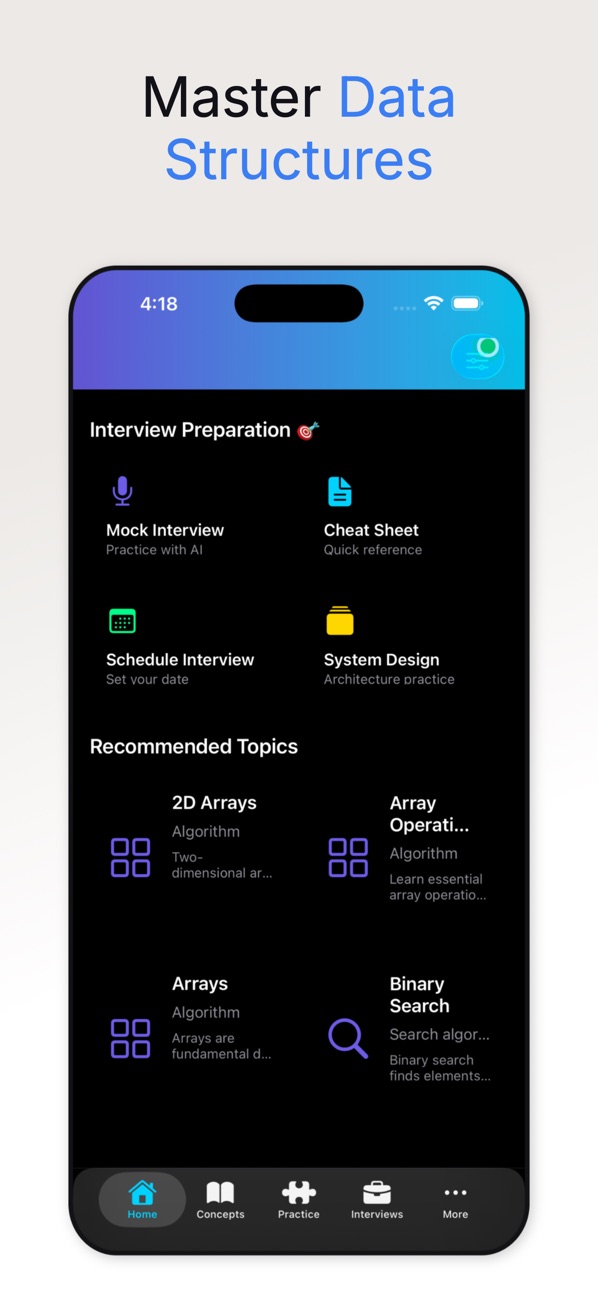
At the time of writing, its App Store listing shows:
- Free, in Education and Developer Tools
- First released in February 2023
- 36 ratings in the US store, averaging about 4.1 stars
- Supports iOS 16.2 and later
How the listing maps to this article:
| What the listing says | Where it's covered |
|---|---|
| "Step-by-Step Animations… Play, pause, replay, and control animation speed" | Recorded steps and StepPlayer (sections 2–4) |
| "Visual Data Flow – See how data structures transform during algorithm execution" | Stable-identity bars that animate themselves (section 5) |
| "Multiple Visualization Types – Sorting, searching, tree traversal, graph algorithms" | The same player with different step types (section 6) |
| "Time Complexity Charts – Visual comparisons of algorithm performance" | Swift Charts LineMark curves (section 7) |
| "Accessibility – Full VoiceOver support" | Captions as labels and announcements (section 8) |
| "Live Code Playground… Python, JavaScript, Java, C++, Kotlin, Dart, and Go" | Options and the Review Guideline note (section 8) |
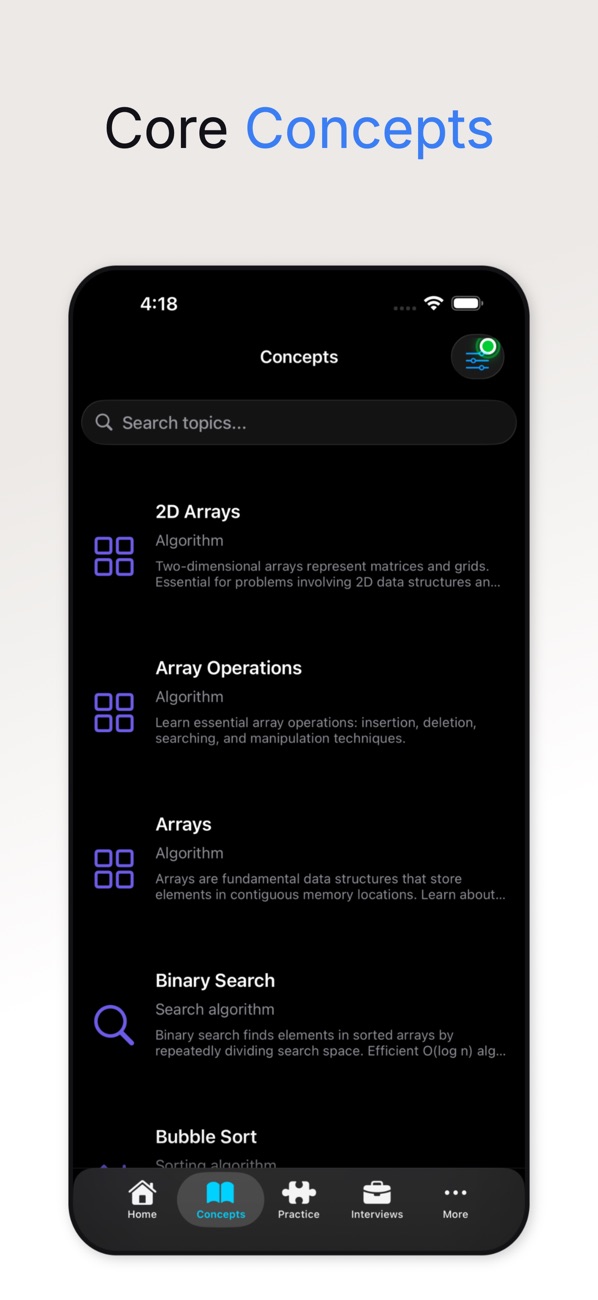
The listing's content library is broad: dynamic arrays, deques, AVL, red-black, segment and Fenwick trees, tries, suffix trees, topological sort, Bellman-Ford, Floyd-Warshall, Kruskal, Prim, KMP and Rabin-Karp. The record-then-replay pattern is what makes that breadth manageable. Each new topic is a pure function that returns steps, plus, at most, a new step view.
10. Before you ship an algorithm visualiser: a checklist
- Algorithms are pure. Each one takes input and returns
[Step]; no SwiftUI, no timers, noasync. - There are unit tests per algorithm: the final step is correct, and the step count is sane for small inputs.
- Identity is stable. Elements have IDs independent of their values, so duplicates animate correctly.
- The player is generic. Play, pause, step, scrub, replay and speed work for every step type.
- Every step has a caption. It's your explanation, your VoiceOver label and your test oracle, all at once.
- Reduce Motion and VoiceOver are respected: a slower default, announcements and cross-fades instead of springs.
- Inputs are capped. Arrays of 10–40 elements; bigger inputs don't teach better, they just get slower.
- Code execution passes review. If you run user code, make sure you meet Guideline 2.5.2, and that remote runners are sandboxed with timeouts.
Wrapping up
The trick to visualising algorithms is to stop animating them. Record what happens as plain data, then let a small, generic player and SwiftUI's identity-based animations do the presenting. You get pause, rewind, speed control, tests and accessibility almost for free, and every new algorithm becomes a short, readable function.
Try the app, or explore my other work:
- DSA Master – Data & Algorithms (iOS): https://apps.apple.com/us/app/dsa-master-data-algorithms/id1672776683
- All of my free iOS apps: https://apps.apple.com/us/developer/alok-singh/id1508795536
- My portfolio: https://bestlatestapps.com/alok/
Which algorithm only made sense to you once you saw it? For me it was the partition step in quick sort. Tell me yours in the comments.
— Alok Kumar Singh
Originally published at https://bestlatestapps.com/blog/animating-algorithms-in-swiftui/